Publishing Your Form: Taking Your Project Live
Drafts vs. Live Forms
In FlowyForm, changes you make in the builder are automatically saved as a Draft. This allows you to experiment with new questions or logic without affecting the experience of people currently filling out your live form.
To make your changes visible to the world, you must click the Publish button.
How to Publish
Whenever you have "Pending Changes" (edits made since the last time you went live), the Publish button in the top right corner of the builder will become active.
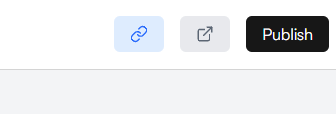
- Review your changes in the Preview mode.
- Once satisfied, click Publish.
- The status indicator will switch from "Pending Changes" to Saved.
Your First Launch
If this is the first time you are publishing a specific form, FlowyForm will celebrate the milestone with a Success Modal. This modal is your command center for distribution.
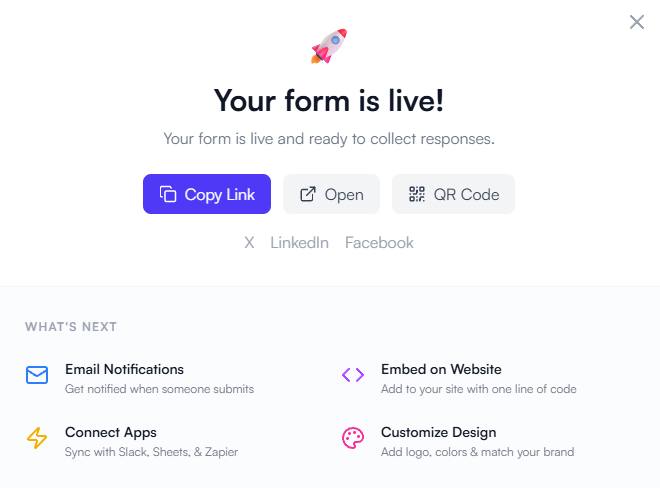
From this screen, you can immediately access:
- Copy Link: The direct URL to your hosted form.
- QR Code: A downloadable code for physical placements.
- Embed Options: Code snippets to place the form directly on your website.
Publishing with Pending Changes
You can continue to edit a form that is already live. While you work, your respondents will see the "Old" version of the form.
Only after you click Publish again will the "Live" version update to match your latest "Draft." This ensures that your audience never sees a "work-in-progress" state.
Troubleshooting FAQ
Why is my Publish button greyed out? This means there are no new changes to push live. Your current draft and your live form are identical.
Can I "Unpublish" a form? Yes. In the Settings tab, you can toggle the Form Status to "Closed" to stop accepting new responses without deleting your work.