Creating Your First Form
Introduction
Welcome to FlowyForm. Whether you are collecting high-volume job applications or simple event RSVPs, our builder is designed to be powerful enough for enterprises but simple enough for anyone to use. You can have a professional, branded form live in less than 2 minutes.
Step 1: Select Your Starting Point
Navigate to your dashboard and click "New Form". You have two professional paths to choose from:
- Start from Scratch: A blank canvas for total creative control.
- Use a Template: Browse our library of high-converting templates for registrations, surveys, and feedback.
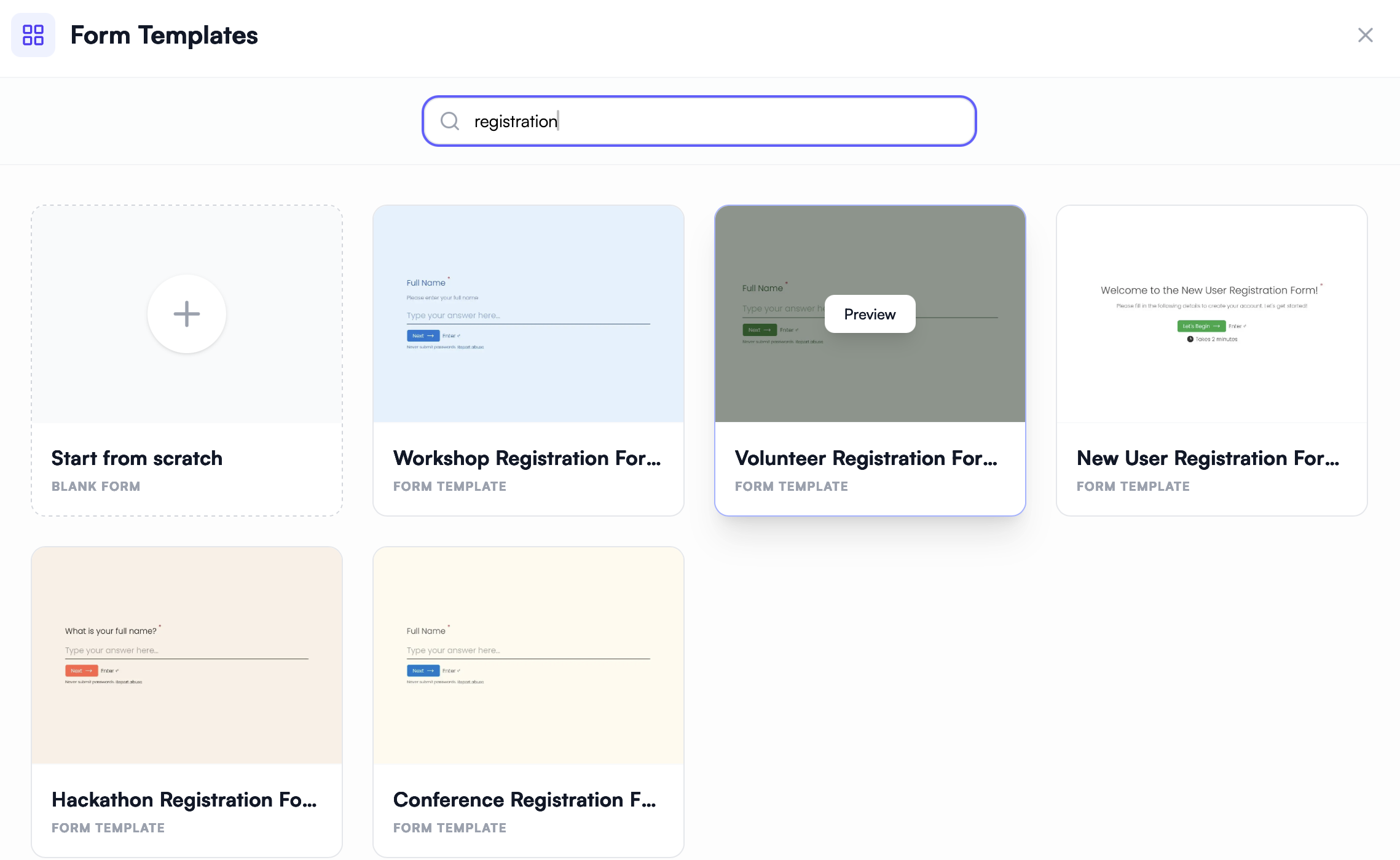
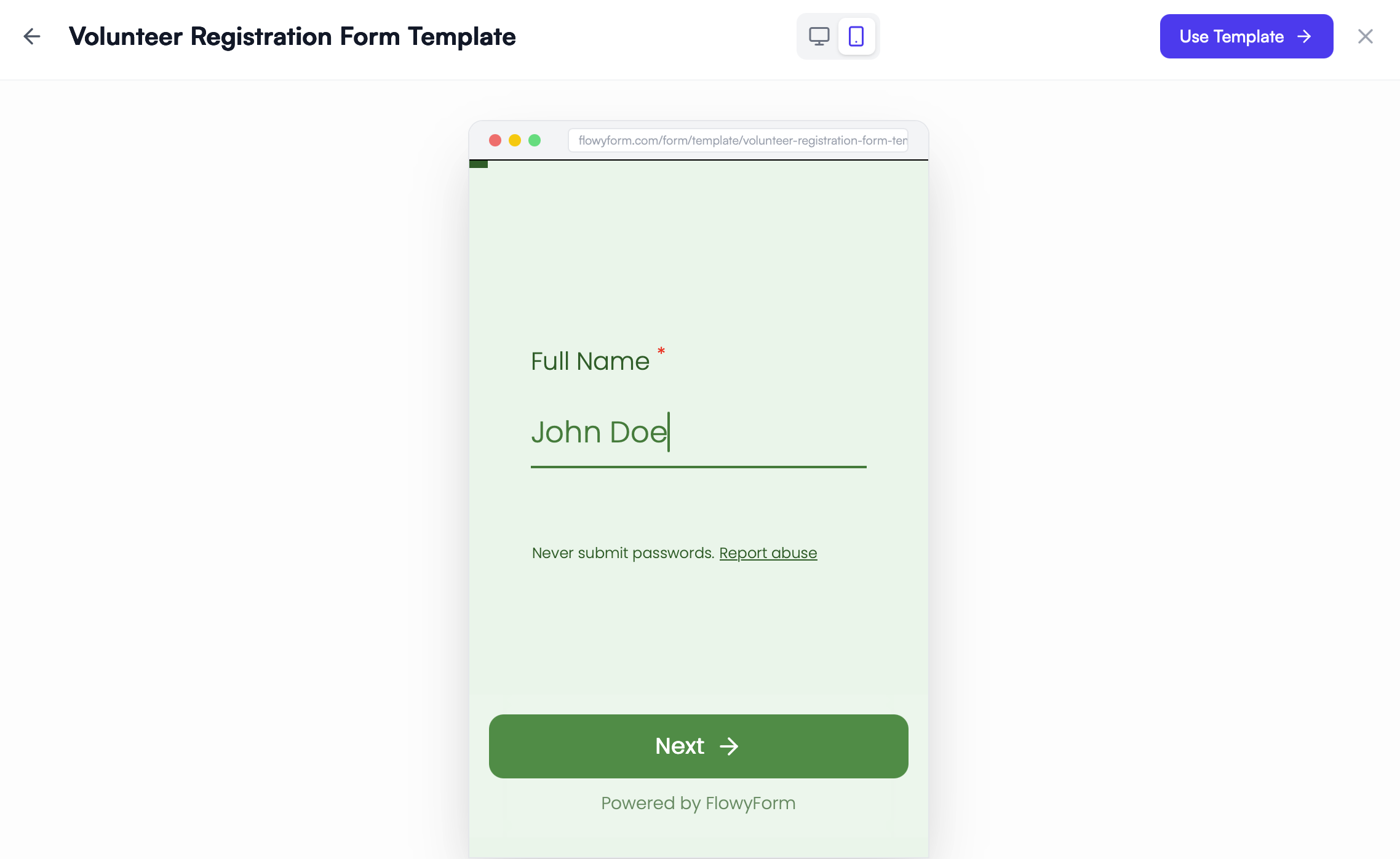
Before committing, you can hover over any template and click "Preview" to see exactly how the flow feels for your end-users on both desktop and mobile devices.
Step 2: Build with Intuitive Drag-and-Drop
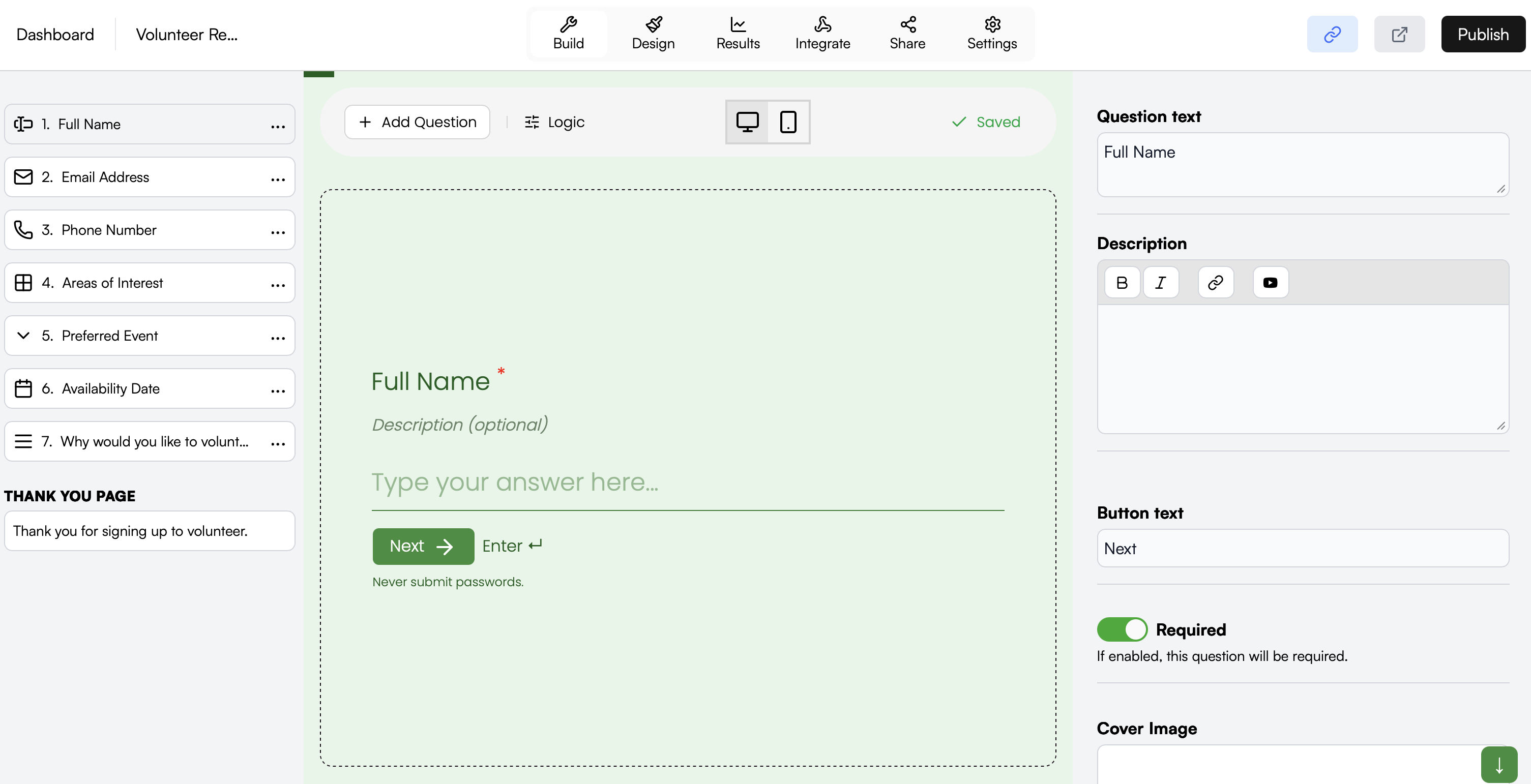
Once you've selected a template or a blank form, you'll enter the Build environment. Adding complex fields is as simple as a single click.
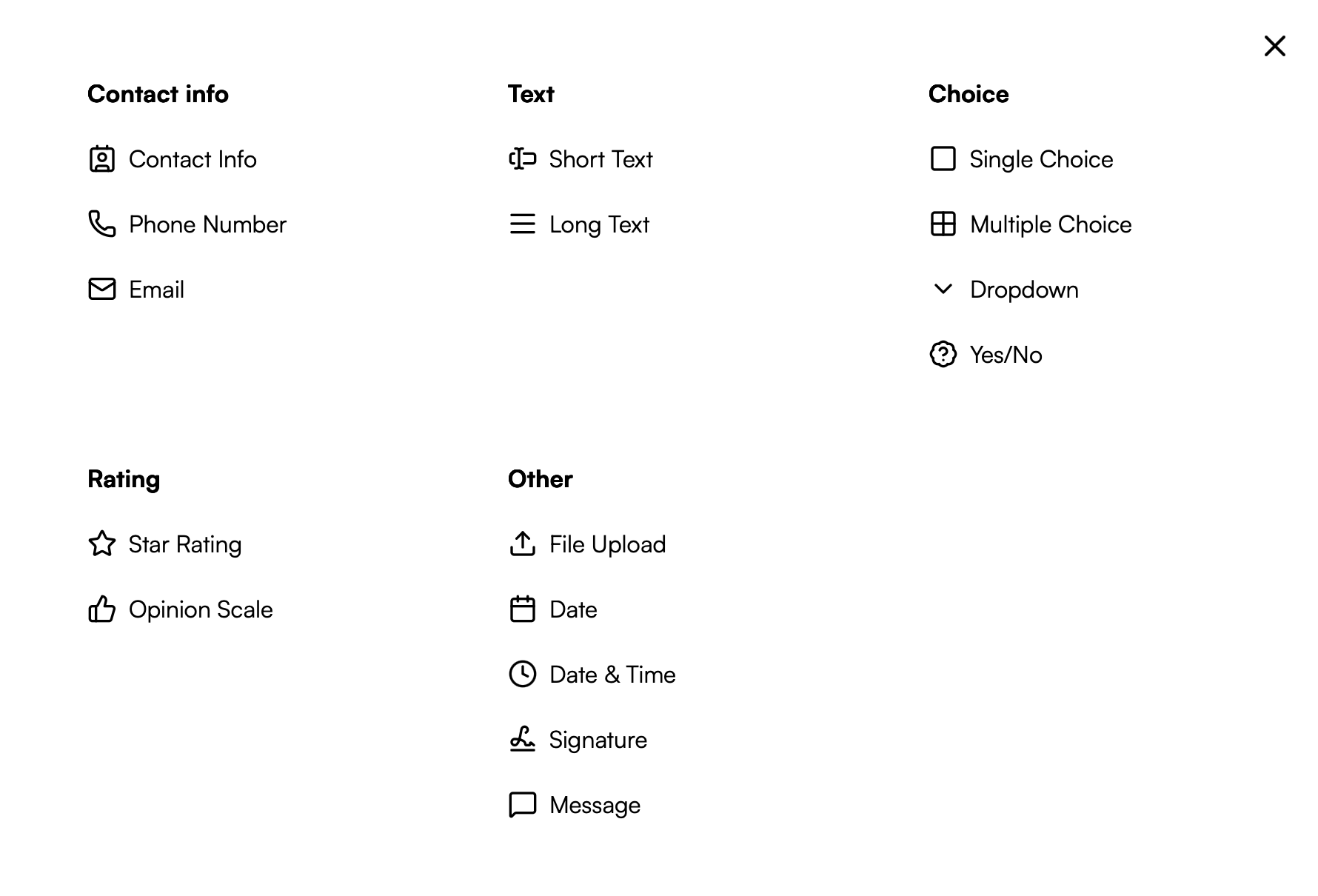
Available Question Types:
- Contact Info: Phone, Email, and Address.
- Choices: Dropdowns, Multiple Choice, and Yes/No toggles.
- Advanced: File Uploads, Star Ratings, and Digital Signatures.
Use the right-hand sidebar to customize your question text, add descriptions, or make specific fields Required to ensure high data quality.
Step 3: Go Live and Automate
Once your design is polished, hit the "Publish" button in the top right corner. Your form is now live and ready to collect responses.
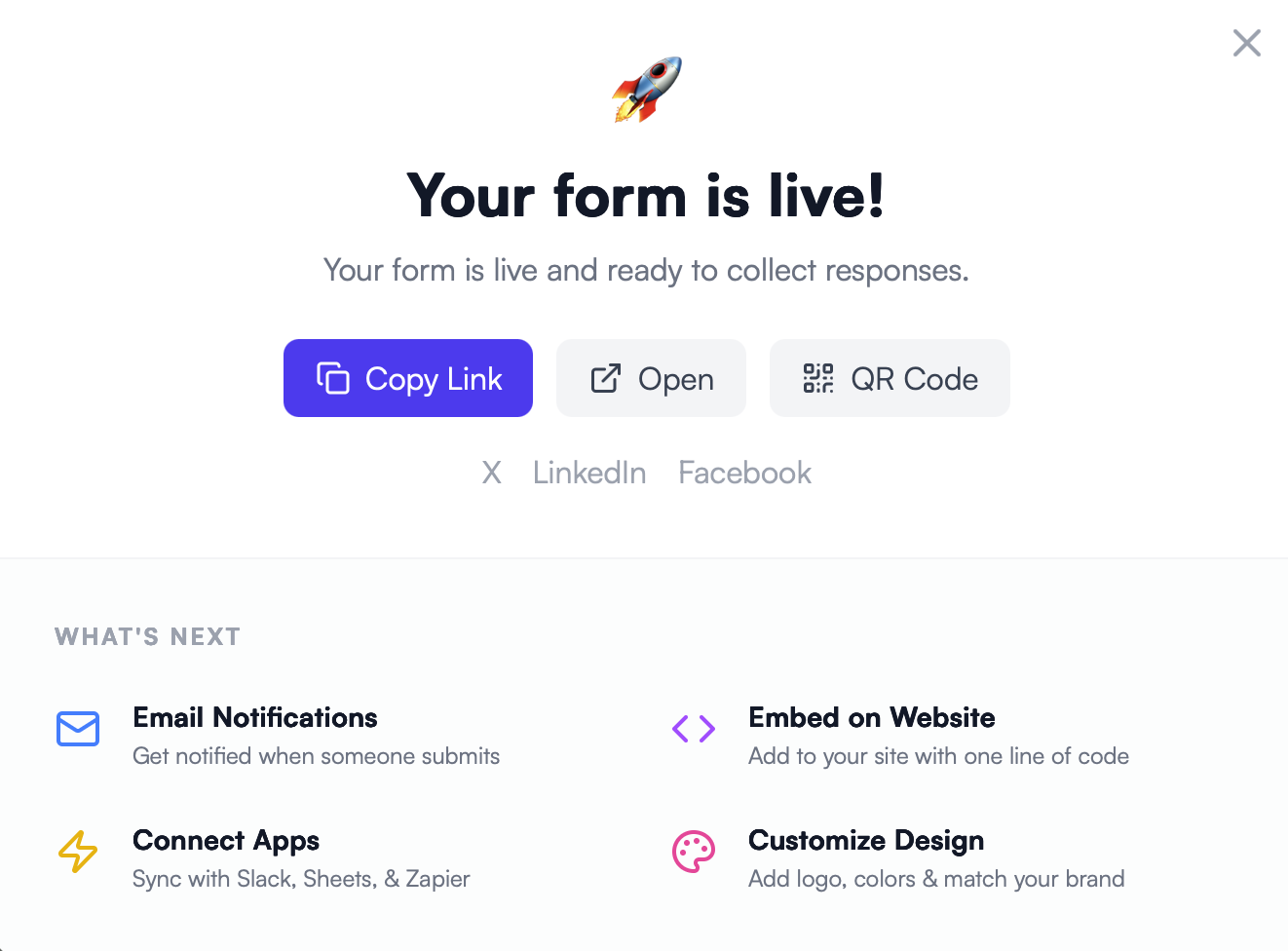
From the success screen, you can immediately:
- Copy the Link: Share your form via email or social media.
- Generate a QR Code: Perfect for physical signage or live events.
- Embed on Website: Add the form to your site with a single line of code.
- Connect Apps: Instantly sync your data with Slack, Google Sheets, or Zapier to automate your entire workflow.
Pro-Tip for Enterprise Users
Don't forget to check the Logic tab in the builder. You can create "Branching Paths" that show different questions based on previous answers, ensuring your users only see what is relevant to them.