Send Messages to Your Respondents or Yourself
Stay Connected with Email Notifications
Communication doesn't end when a respondent hits submit. With FlowyForm, you can trigger automated emails to keep your team informed and your respondents engaged. Whether it's an internal alert for a new lead or a personalized "Thank You" to a customer, you can manage it all from one place.
All email configurations are managed within the builder under the Settings tab.
Sending Notifications to Yourself
Stay on top of every submission by receiving an email the moment a form is completed. You can send these to yourself or multiple team members.
- Open your form in the builder and click the Settings tab at the top.
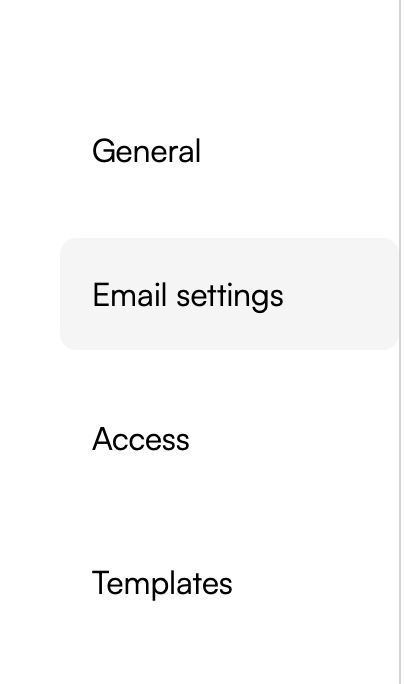
- Select the Email Settings subtab from the left-hand menu.
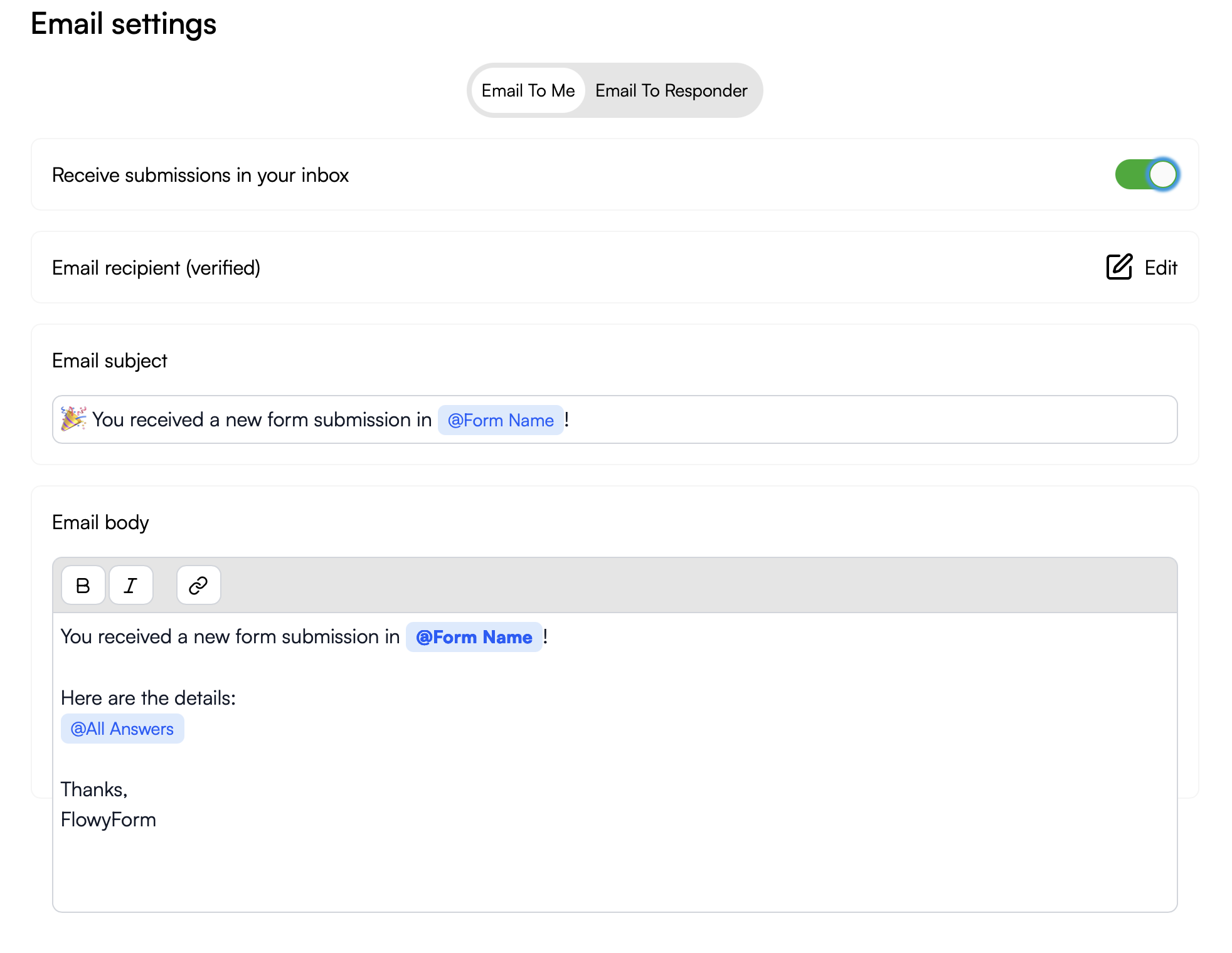
- Locate the "Email Notifications for You" section and toggle it on.
Customizing the Alert
You can fully customize the content of the email you receive to ensure the most important data is visible directly in your inbox.
- Subject Line: Use a clear title like "New Lead: {{Name}}" to identify the submission quickly.
- Email Body: You can use variables to "recall" information from the form, or simply select "Include all answers" to see the full submission.
Sending Follow-ups to Respondents
FlowyForm Premium Feature: Sending automated emails to respondents is available on our Premium plans.
Branded follow-up emails are a professional way to confirm receipts, provide next steps, or deliver resources to your users.
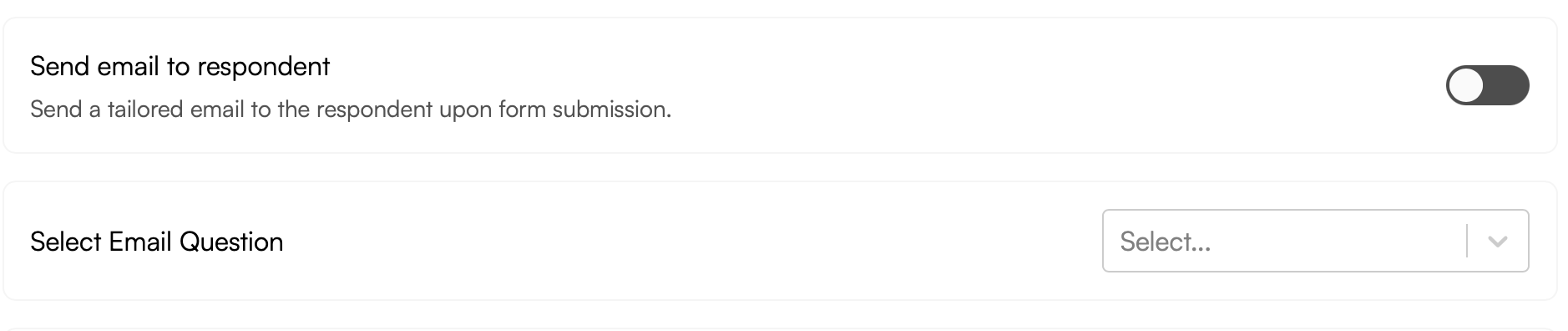
- In the same Email Settings subtab, scroll to "Email Notifications for Respondents."
- Ensure you have an "Email" question type in your form so FlowyForm knows where to send the message.
- Toggle the feature on and begin customizing your message.
Personalizing the Respondent Experience
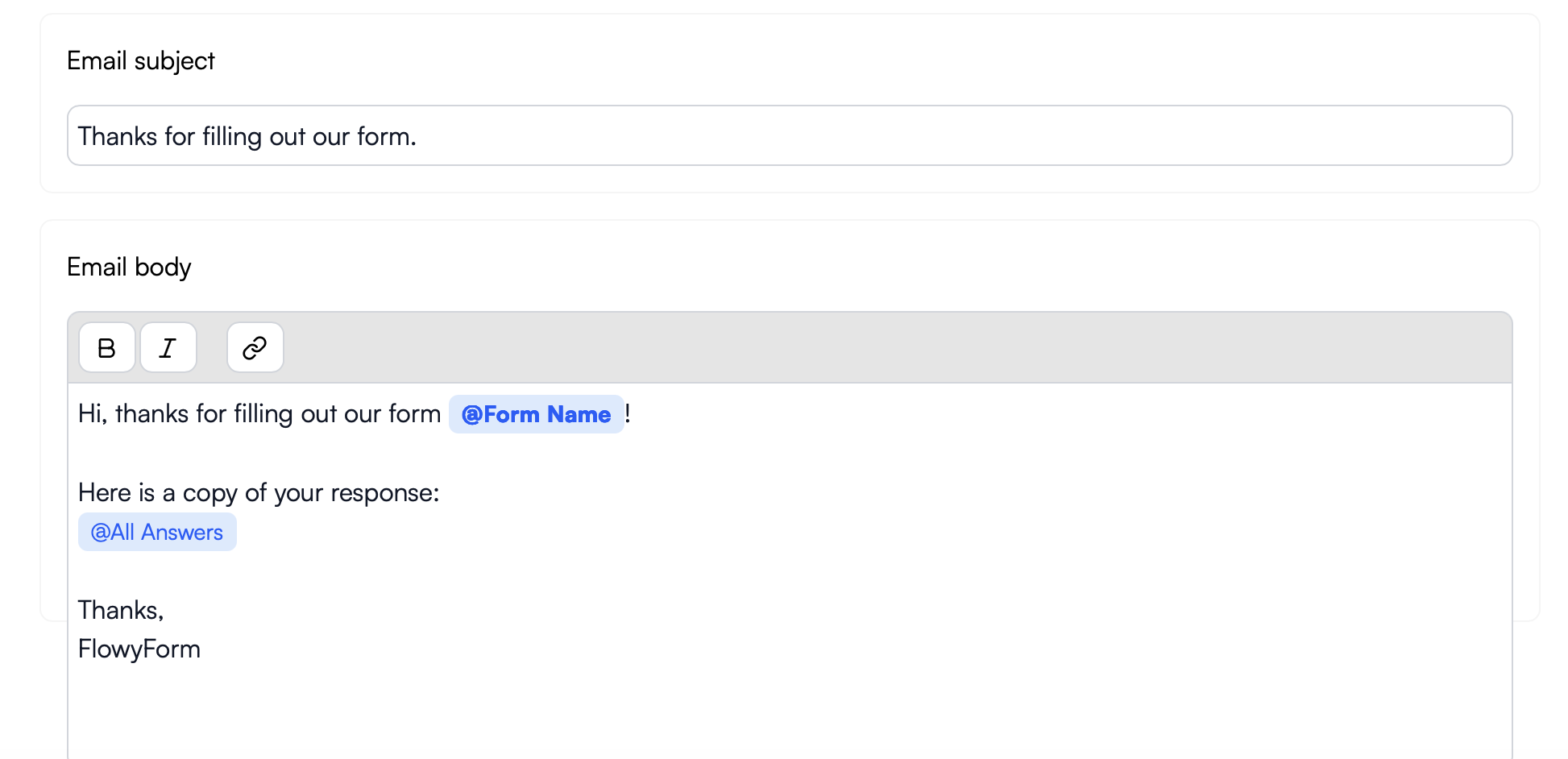
Because these emails are the face of your brand, we provide a rich editor to make them feel personal:
- Subject Line: Make it engaging, such as "Thanks for joining us, {{First_Name}}!"
- Email Body: Write a warm message and use variables to recap their specific choices or provide a unique download link.
Pro-Tip: Using Variables
To make your emails dynamic, type {{ in any text field to see a list of available questions from your form. Selecting a question will automatically insert the respondent's specific answer into the email they receive.