Automate Workflows with Google Sheets
Real-Time Data Syncing
Integrating FlowyForm with Google Sheets allows you to move beyond simple data collection. By syncing your responses to a live spreadsheet, you can leverage powerful formulas, create dynamic dashboards, and share data with your team without ever leaving the Google ecosystem.
Every new submission is sent to your spreadsheet the moment a respondent hits "Submit."
Step 1: Authorize Your Google Account
To begin, open your form in the builder and navigate to the Integrate tab.
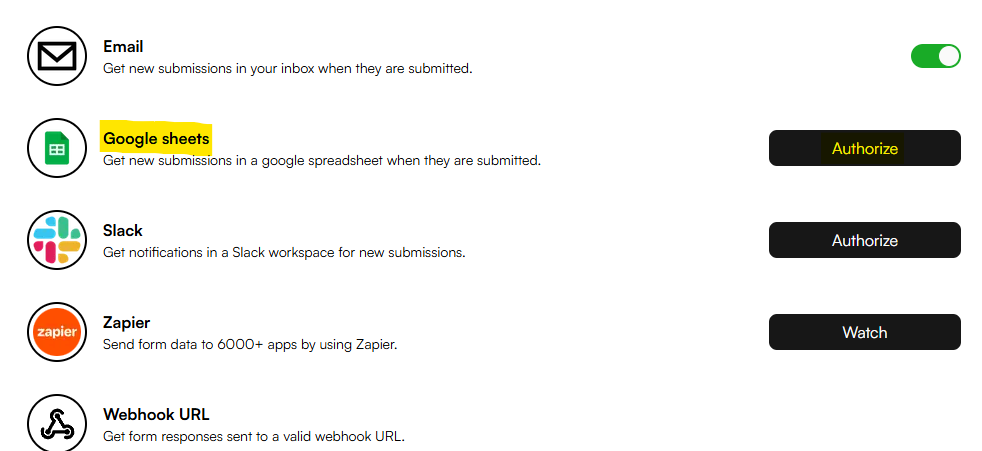
- Locate the Google Sheets option.
- Click the Authorize button. If you have previously connected an account and wish to use a different one, select Re-authorize from the dropdown menu.
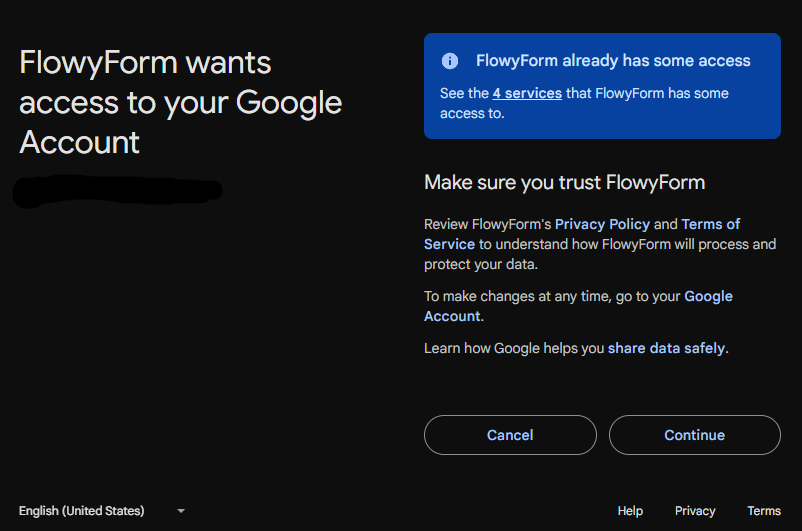
- A secure Google popup will appear. Grant FlowyForm the necessary permissions to create and edit spreadsheets on your behalf.
Step 2: Connect and Initialize Your Sheet
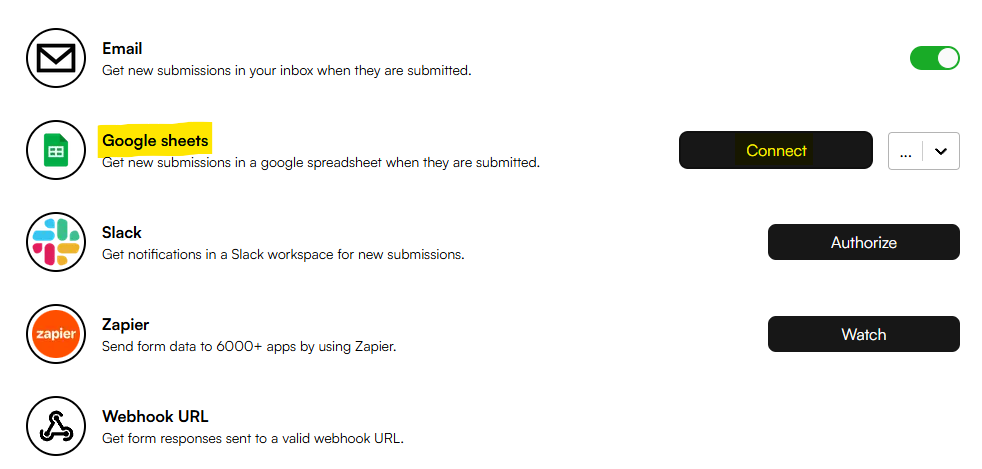
Once authorized, you will be redirected back to the FlowyForm builder. You will now see a Connect button active for the Google Sheets integration.
- Click Connect to automatically generate a new spreadsheet specifically for this form.
- FlowyForm will create a sheet where each column header matches a question in your form.
Step 3: Manage Your Live Data
After the connection is established, you can access your spreadsheet at any time directly from the builder.
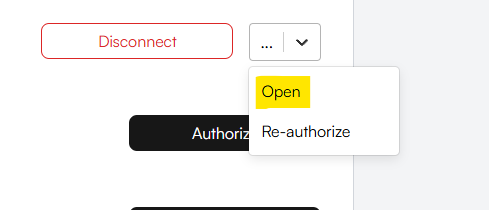
- Click the dropdown menu next to the connection status.
- Select Open to launch the spreadsheet in a new browser tab.
Important Note on Data Integrity: FlowyForm uses the first sheet (Sheet1) to sync your data. To ensure the integration remains stable, do not modify the header row or manually delete rows in Sheet1. Instead, use formulas in a second tab to reference and manipulate your data.
Pro-Tip: Advanced Automations
With your data in Google Sheets, you can use Apps Script or Pivot Tables to create automated reports. Many enterprise users use this integration as a bridge to send data into visualization tools like Looker Studio or Power BI.