How to Embed a YouTube Video
Enhance Your Forms with Video
Interactive content significantly boosts engagement and completion rates. Whether you are creating a training quiz, a product feedback survey, or a video-based application, embedding a YouTube video directly into your FlowyForm ensures your respondents stay focused and informed.
You can add a video to the Description of any question type in the builder.
Step 1: Access the Video Embed Tool
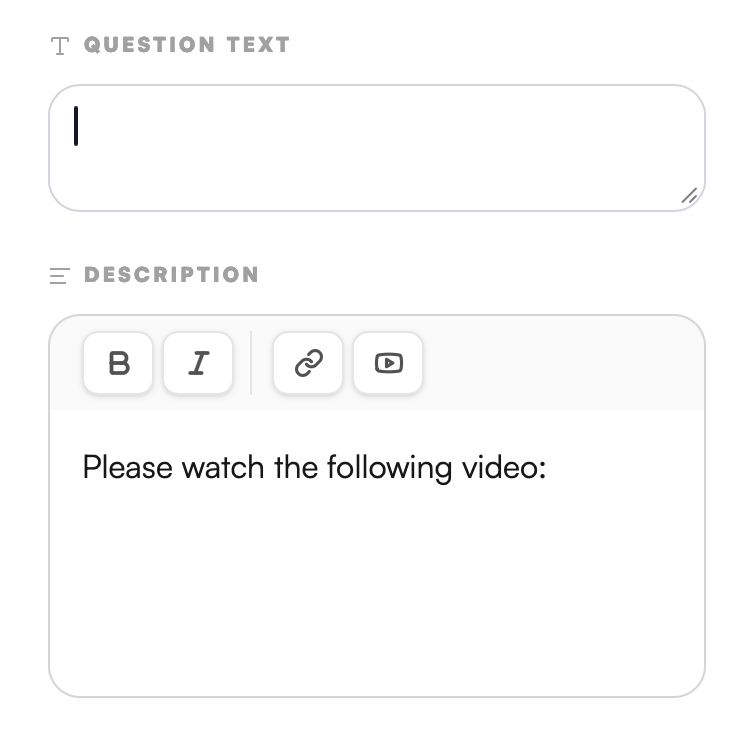
First, select the question where you want to add the video. Videos are added through the Description field in the right-hand settings panel.
- Click into the Description box.
- Click the YouTube icon in the toolbar above the text box.
Step 2: Insert Your YouTube URL
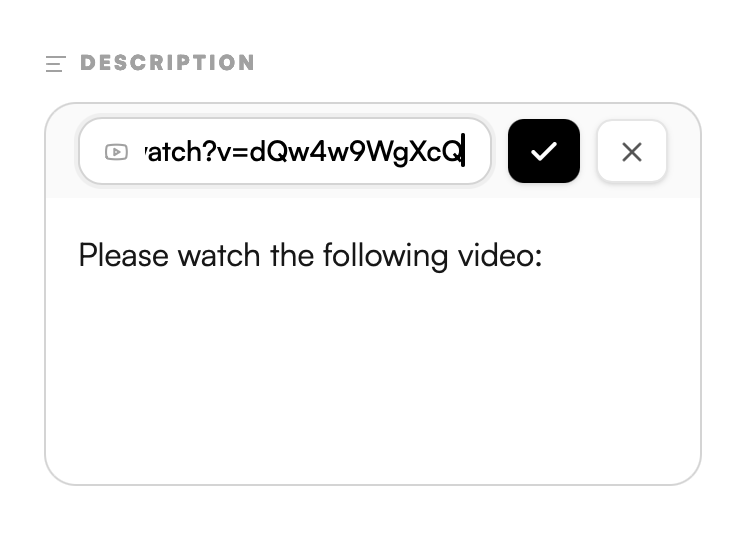
Once you click the icon, a small input field will appear.
- Paste the full URL of your YouTube video (e.g.,
https://www.youtube.com/watch?v=...). - Click the Checkmark icon to confirm.
Step 3: Verify in the Builder
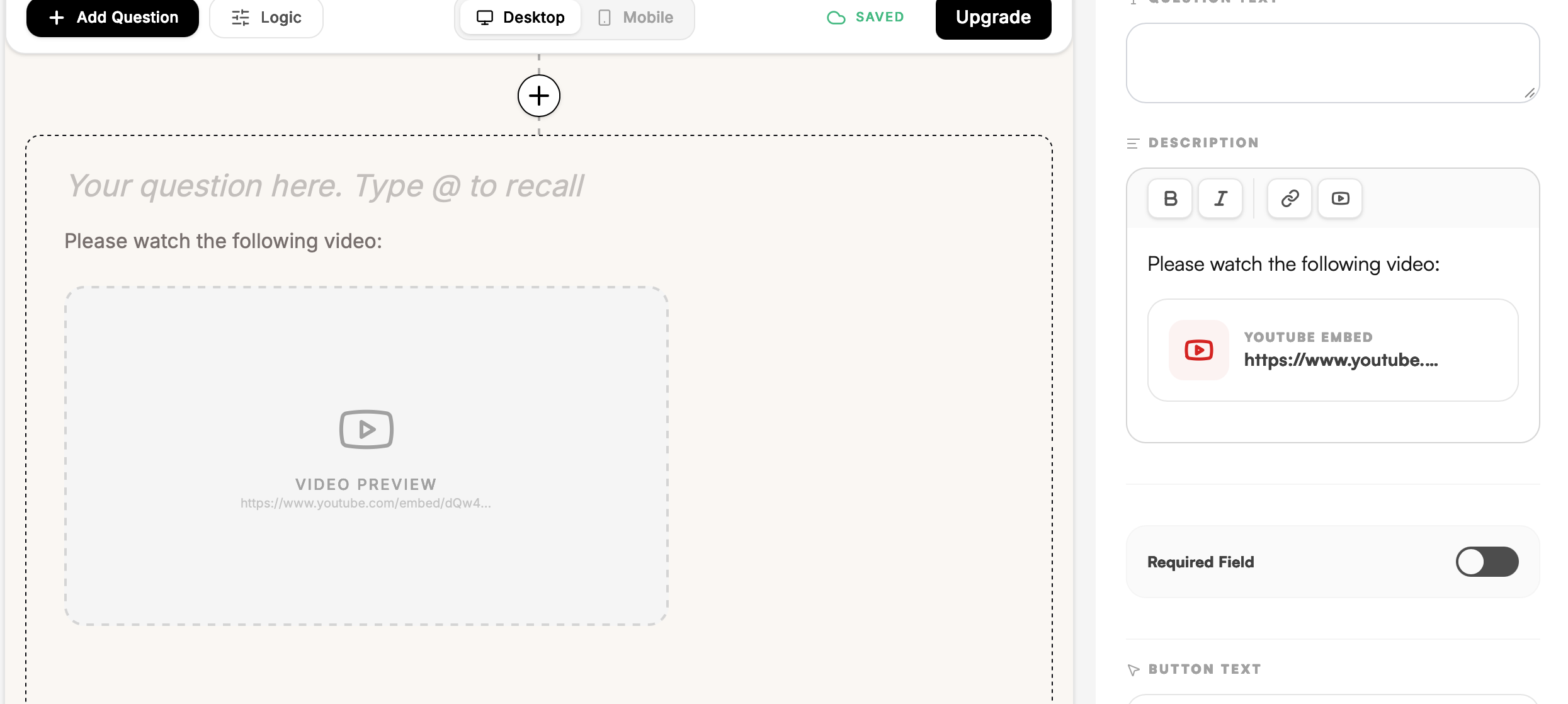
After confirming the link, you will see a Video Preview placeholder appear on your main canvas. This confirms that the video has been successfully linked and will be visible to your respondents.
Step 4: Preview the Live Experience
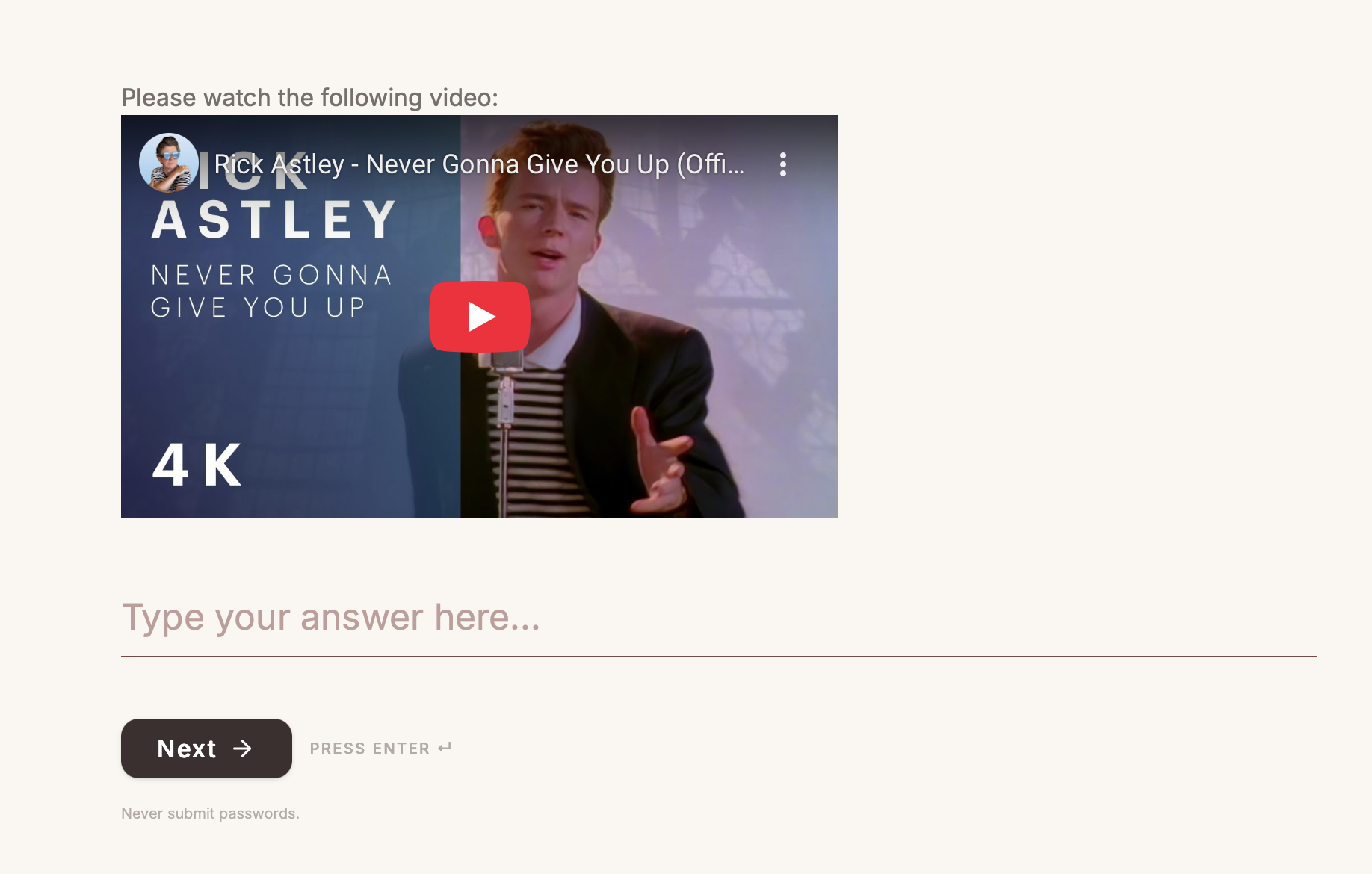
To ensure the video is positioned correctly and plays as expected, publish and open the form in a new tab. Respondents will be able to play the video directly within the form flow without being redirected to YouTube.
Pro-Tip: Context is King
Use the text area in the Description above the video to give instructions, such as "Please watch the following video before answering the question below." This ensures your respondents know exactly why the video is there and what they should look for.