Customizing Your Form Themes and Design
Brand Your Form Experience
A well-designed form builds trust and increases completion rates. FlowyForm provides a robust design suite that allows you to change everything from your core color palette to the specific way questions animate onto the screen.
To start styling, click on the Design icon (the paint palette) in the top navigation bar.

1. Using the Appearance Gallery
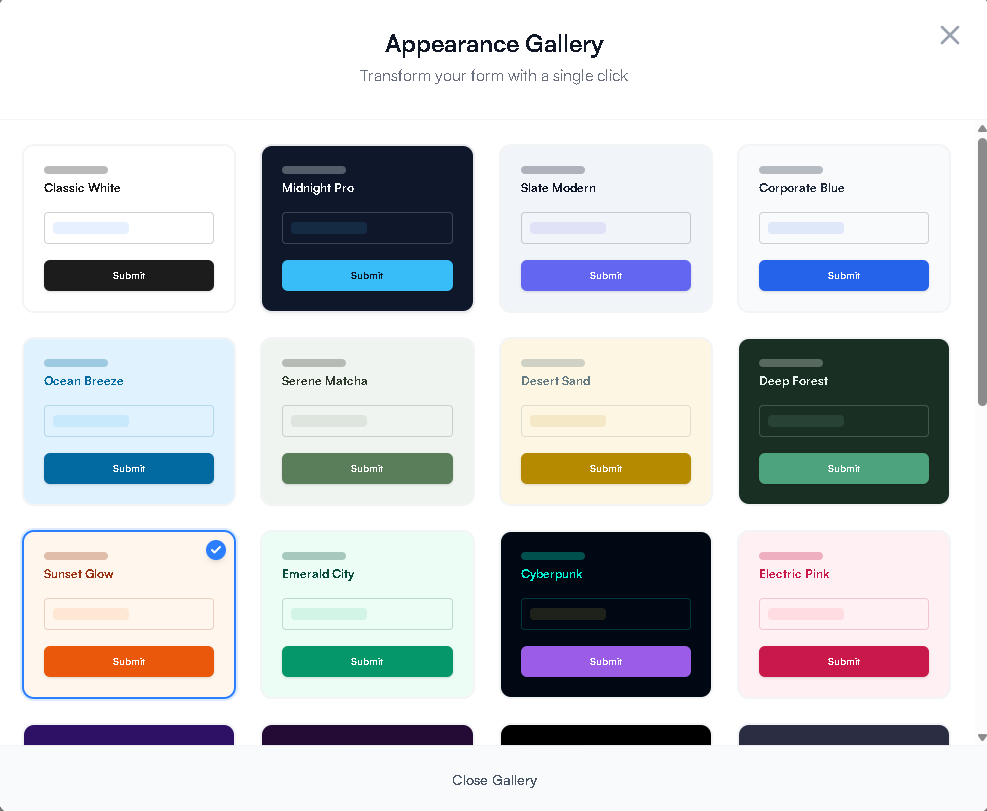
For a fast and professional look, you can use our pre-built themes. These are carefully crafted combinations of colors and fonts that work well together.
- Click the Open Theme Gallery button at the top of the Design sidebar.
- Select a theme that fits your brand (e.g., "Midnight Pro" for a dark mode look or "Sunset Glow" for something vibrant).
- The theme will apply to your entire form instantly.
2. Manual Customization
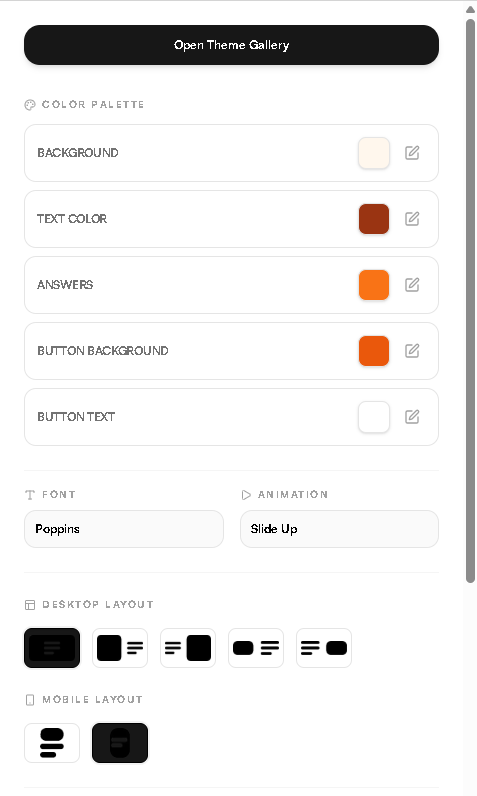
If you have specific brand guidelines, you can manually adjust every element in the Design sidebar:
- Color Palette: Set specific hex codes for Background, Text, Answers, and Buttons.
- Typography: Choose a font that matches your brand identity.
- Animations: Change how questions appear (e.g., Slide Up or Fade) to control the "flow" of the form.
3. Layouts and Brand Assets
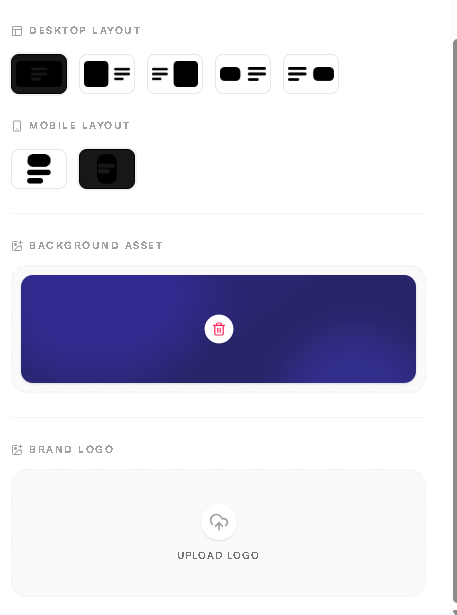
Further down the Design sidebar, you can find structural and branding options:
- Desktop & Mobile Layouts: Choose how your text and images are aligned on different devices.
- Background Asset: Upload a custom image or pattern for your form's backdrop.
- Brand Logo: Upload your company logo to the footer or header area for professional branding.
Pro-Tip: Real-Time Preview
As you make changes, the builder updates live. You can toggle between Desktop and Mobile views at the top of the canvas to ensure your design looks great on all screens.