Setting Up Custom Domains
Why Use a Custom Domain?
By default, your forms are hosted on flowyform.com. However, for enterprise branding and higher conversion rates, you can link your own domain. This removes all FlowyForm branding from the URL and ensures your forms feel like a native part of your website ecosystem.
Custom domains are managed within the Share tab of each individual form.
Step 1: Navigate to the Share Tab
To begin the setup, open the form you wish to white-label.
- Look at the top navigation bar in the builder.
- Click on the Share icon.

Step 2: Enter Your Custom Hostname
Once in the Share tab, locate the Custom Domain section.
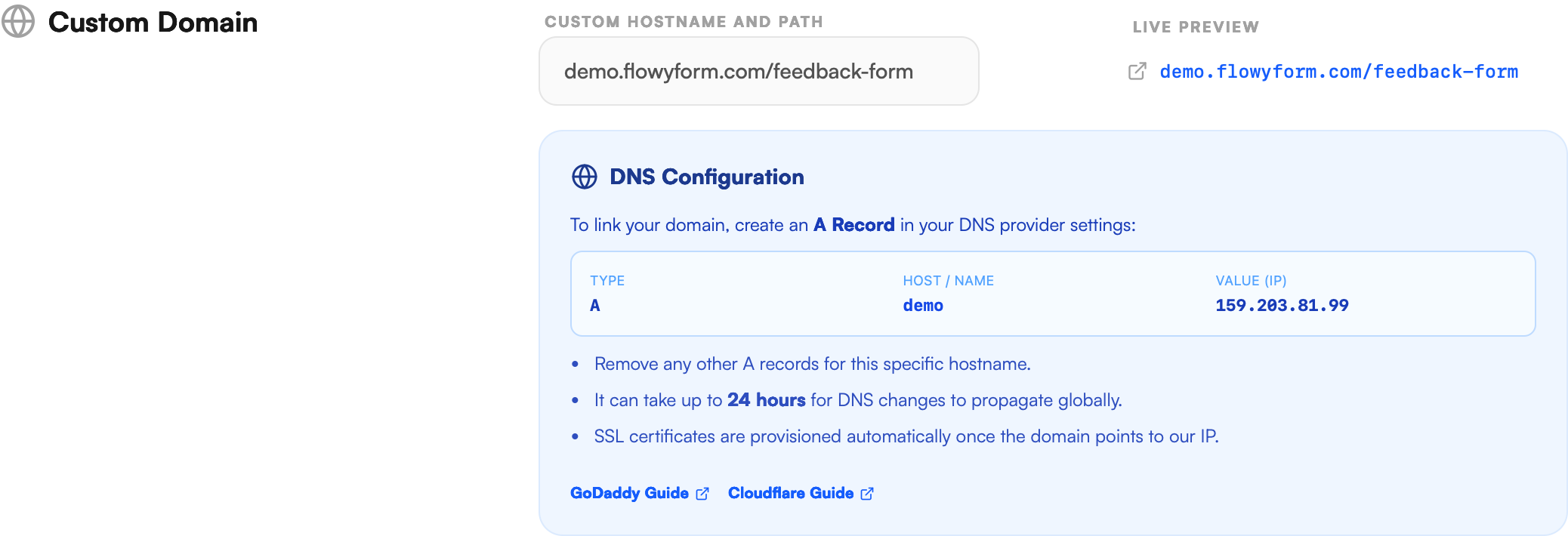
- In the Custom Hostname and Path field, enter the domain or subdomain you want to use (e.g.,
demo.flowyform.com/feedback-form). - FlowyForm will automatically generate the required DNS values for you to use in the next step.
Step 3: Configure Your DNS Records
To point your domain to FlowyForm, you need to add an A Record in your domain registrar's settings (such as GoDaddy, Cloudflare, or Namecheap).
- Log in to your DNS provider.
- Create a new record with the following details:
- Type: A
- Name: (Your subdomain, e.g.,
demo, or@for a root domain) - Value (IP):
159.203.81.99
Step 4: Verification and SSL
After you have saved your DNS settings, the status will update in FlowyForm.
- Propagation: It can take up to 24 hours for DNS changes to propagate globally, though it often happens much faster.
- Automatic SSL: Once your domain correctly points to our IP address, FlowyForm will automatically provision an SSL certificate for you. Your forms will be served securely over HTTPS with no extra configuration required.
Pro-Tip: Clean Subdomains
Most professional organizations use a dedicated subdomain like survey.yourcompany.com or apply.yourcompany.com. This keeps your main website's DNS records clean while providing a clear, branded path for your form respondents.