Collecting Digital Signatures in Your Forms
Why Use Digital Signatures?
Paper-based signatures are slow and difficult to manage. By adding a Signature field to your FlowyForm, you can formalize agreements, approve terms of service, or verify identities in real-time. Respondents can sign using their mouse on a desktop or their finger/stylus on a mobile device.
Step 1: Add a Signature Question
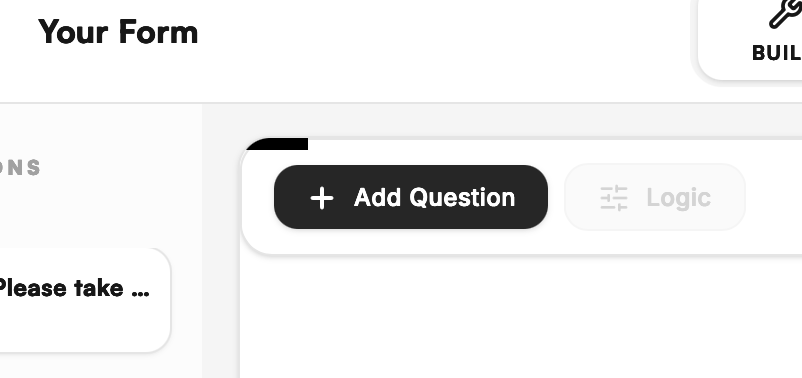
You can add a signature field at any point in your form builder.
- Click the Add Question button in the top left corner of the builder canvas.
- Use the search bar in the modal to type "Signature" or scroll to find it under the "Other" category.
- Click on the Signature block to insert it into your form.
Step 2: Customize Your Request
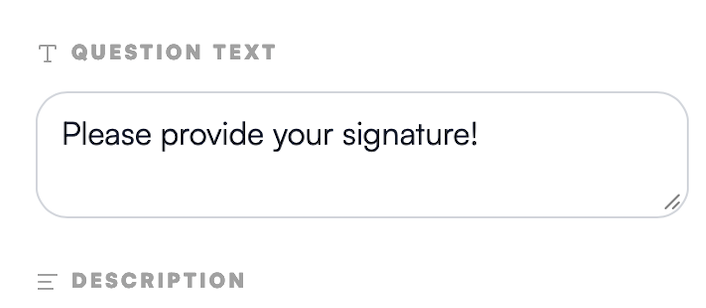
Once the field is added, use the right-hand settings panel to provide clear instructions to your signer.
- Question Text: Clearly state what the user is signing for (e.g., "Please provide your signature to agree to the terms").
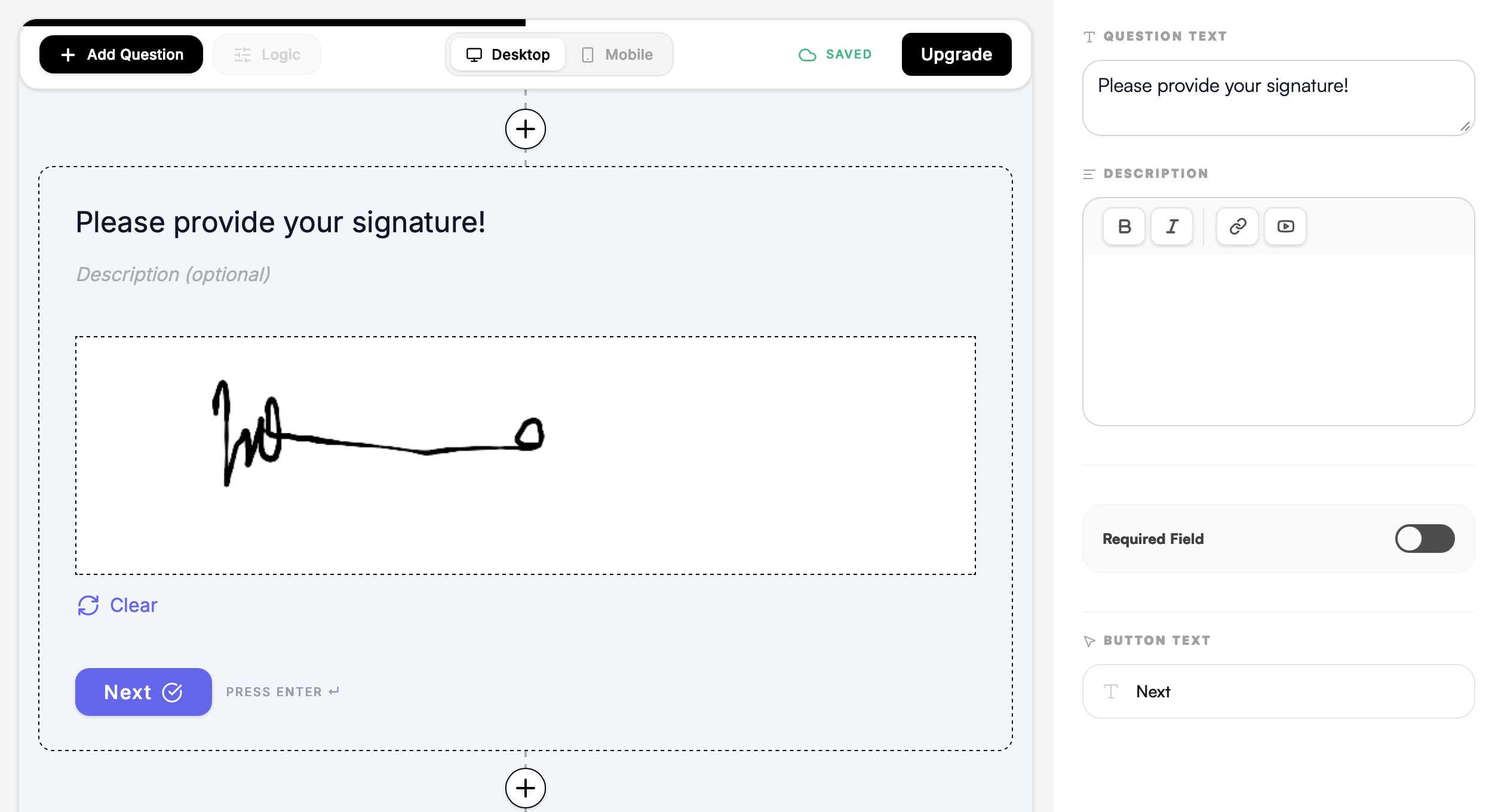
- Required Toggle: For legal or formal documents, ensure the Required Field toggle is switched on. This prevents the user from submitting the form without a valid signature.
Step 3: The Signer Experience
When your respondent reaches this question, they will see a clean, dedicated drawing area.
- Drawing: Users simply draw their signature inside the box.
- Clearing: If they make a mistake, they can hit the Clear button to start over before moving to the next question.
Step 4: Accessing Your Signed Documents
Once a form is submitted, the signature is captured as a high-resolution image. You can view these signatures in the Results tab of your dashboard or export them as part of your data sync with Google Sheets or Slack.
Pro-Tip: Legal Context
To make your digital signatures more robust, place a Long Text question or a Statement question immediately before the signature field. This allows you to display your full Terms and Conditions so the user knows exactly what they are authorizing.